
The Upgrade Odyssey: My Windows 11 24H2 Boss Fight
Stuck upgrading to Windows 11 24H2? I went down the rabbit hole of Secure Boot keys, DER files, BIOS rituals and cryptic errors- until the system finally booted. A funny, detailed tech adventure. Dive in if you dare.


There’s a special corner of the tech universe reserved for people who like to tinker with things that Microsoft explicitly warns you not to touch. The kind of people who see a folder called SecureBootUpdates, containing mysterious .bin files, and immediately think:
“Yes. Absolutely. I should point PowerShell at those.”
This is the story of how I, armed with Windows 11 Pro 22H2, an X570-F motherboard, a TPM that thinks it’s in witness protection, and an unreasonable level of optimism, attempted to climb the legendary mountain known as Windows 11 24H2.
Spoiler: the mountain threw rocks.
Chapter 1 — It Begins With a Simple Update… That Fails Horribly
You know it’s going to be a good day when Windows Update refuses to update Windows.
One morning, Windows cheerfully informed me that my perfectly functional Windows 11 Pro installation was now EOL. End of life. Done. Sunsetted. Retired to the great recycle bin in the sky. I checked the version — 22H2 — and sure enough, Microsoft had quietly shoved it off the support cliff. The helpful message:
“To continue receiving updates, please upgrade to 24H2 or 25H2.”
Naturally, I picked 24H2, because 25H2 is still at the “Microsoft is experimenting on live humans” stage of stability. I grabbed the ISO, mounted it through Daemon Tools, ran the setup and… boom.
It downloaded.
It installed.
It rebooted.
It rebooted again.
It rebooted backwards.
It spat me right back into 22H2 like nothing ever happened.
Then it delivered the classic haiku:
“The installation failed in the SECOND BOOT phase.”
0xC1900101 – 0x40017
That’s an error code so distinctively Windows it should be printed on a throw pillow.
At the same time, Event Viewer cheerfully reported:
“The description for Event ID 13 from source nvlddmkm cannot be found.”
Always comforting when your NVIDIA GPU driver appears in the logs like a raccoon in your kitchen at 3 A.M., refusing to explain itself.
Chapter 2 — Visual Artefacts and the Cursed Driver
After the rollback, I started noticing visual artefacts.
Little flickers.
Tiny glitches.
Graphics exceptions accompanied by:
Graphics Exception: Shader Program Header 1 Error
\Device\Video3
Lovely. Just what you want to see after an OS upgrade failure: a GPU behaving like it just came back from a bad ayahuasca retreat.
Naturally I installed the newest NVIDIA Game Ready driver (581.80), because nothing says stability like brand-new display code.
Chapter 3 — Daemon Tools and the ISO of Doom
My first theory?
The ISO was mounted via Daemon Tools.
Maybe the in-place upgrade got confused between virtual CD-ROM dimensions and physical reality — like a cat staring at itself in a mirror.
So I asked the eternal question:
“Can I fix this if I burn the ISO to a USB stick using Rufus?”
Yes. Apparently you can even do an “in-place upgrade” from a USB stick.
Windows is a mysterious beast.
I didn’t get that far, though, because something else broke first.
Chapter 4 — The Secure Boot Saga (a.k.a. The Real Boss Fight)
Turns out the actual villain of my story was hiding underneath Windows.
Deep underneath.
Down in the UEFI firmware, where polite abstractions go to die.
Every attempt to upgrade to 24H2 produced errors about Secure Boot, specifically a missing certificate in the db signature database.
Checking C:$WINDOWS.~BT\Sources\Panther\setuperr.log revealed I was hitting a CATALOG SIGNING / BOOT CERTIFICATE FAILURE, which produces 0xC1900101 – 0x40017 during FIRST_BOOT.
The smoking gun:
🔥BFSVC: USE_EX_BINS flag is specified, but 2023 cert is not in db
Translated:
❗Windows boot environment (Boot Manager + Boot Loader + BCD)
is too old to validate the new Windows 11 24H2 2023 Extended Boot Certificates.
Windows Setup depends on these new boot certificates (post-2023 SHA2 catalog update).
Since the system cannot validate them → boot phase fails → rollback → 0x40017.
In that case I'll just update the Secure Boot and I should be good to go! That's easier said than done and that's the reason I am writing this article.
But hey! There's a built-in Scheduled Task that can update the Secure Boot, let's run it!
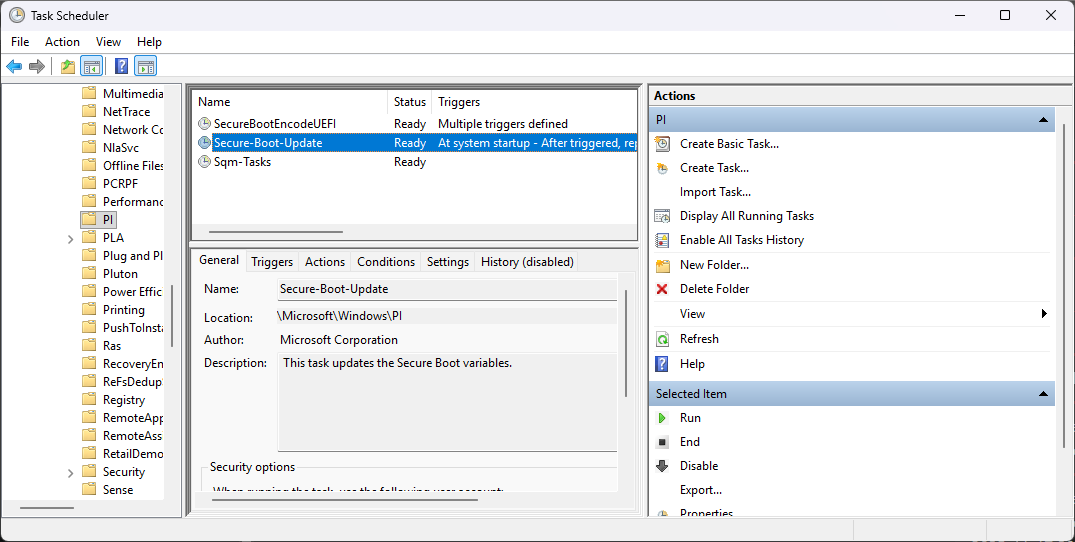
Event Viewer chimed in like a Shakespearean narrator delivering foreshadowing:
TPM-WMI Event 1796: The Secure Boot update failed to update a Secure Boot variable. The parameter is incorrect.
Ah yes.
The parameter.
The parameter.
The one.
The chosen one.
Incorrect.
And then:
Task Scheduler failed to complete task "\Microsoft\Windows\PI\Secure-Boot-Update", action "TPM Maintenance Task Handler". Error Value: 2147942487.
2147942487. A number so random it looks like the price of a GPU on Black Friday.
Chapter 5 — I Try to Fix Secure Boot the Hard Way (and Immediately Regret Everything)
So I opened:
C:\Windows\System32\SecureBootUpdates\
Inside:
dbupdate.bin
dbxupdate.bin
These are the things Windows tries to flash during the upgrade.
Things my system apparently wanted nothing to do with.
I rebooted into BIOS found the Secure Boot Key Management section and tried:
- Append New Key → Load Error
- Set New Key → Security Violation
Not only I am out of luck, but I am starting to feel like I am out of ideas.
Chapter 6 — Hardware Reality Check: X570-F Gaming
My ASUS X570-F Gaming motherboard is many things:
- capable
- stable
- angry when fed unsigned firmware objects
It turns out this board is extremely picky about how db/dbx updates are formatted and ASUS does not even list it under hardware supporting Windows 11.
I'm surely in for a treat!
Chapter 7 — GitHub to the Rescue (Because Of Course Microsoft Stores Firmware Keys on GitHub)
After days spent spelunking through UEFI menus and PowerShell cmdlets that behave like eldritch rituals, I eventually discovered that Microsoft — in their infinite wisdom — actually publishes their Secure Boot UEFI signature objects… on GitHub.
Yes. Really.
Not in Windows.
Not in the Microsoft Update Catalog.
Not through some official admin portal.
GitHub.
The repository?
👉 https://github.com/microsoft/secureboot_objects
Hosted like it’s an open-source side project maintained on Thursdays.
Inside it you will find:
- db (allowed signatures)
- dbx (revoked signatures)
- KEK (Key Exchange Key)
- PK (the Platform Key)
And each is provided in multiple lovely formats, but most importantly
.der — the magic X.509 certificates my BIOS recognizes
It’s like walking into a library and realizing the spellbook you’ve been trying to summon with PowerShell was sitting on a public shelf the whole time.
These DER files were the key — literally — to nudging my stubborn X570-F motherboard toward a more modern Secure Boot configuration.
Little did I know… the BIOS was going to cooperate.
Eventually.
Sort of.
Chapter 8 — Back into the BIOS: The Sacred Ritual of “Load DER File and Pray”
Armed with the DER files like some kind of budget UEFI exorcist, I rebooted and dove back into the BIOS.
There they were:
Options to load PK, KEK, db, dbx from a file.
This time — miracle of miracles — the motherboard recognized the DER files from the Microsoft repo.
Not the dbupdate.bin, not the dbxupdate.bin, not the Windows-generated AUTH capsules.
The plain DER certificates worked.
Huge warning for anyone following in these cursed footsteps:
⚠️ BACK UP YOUR EXISTING SECURE BOOT KEYS FIRST ⚠️
Every BIOS has an option like:
- “Save Secure Boot Variables”
- “Export PK/KEK/db/dbx”
- “Backup to USB”
Do that.
Do all of that.
Do it twice.
Print them on paper and frame them.
Because if you load the wrong thing — or if your system decides to have a personality crisis — you can absolutely brick your boot process.
And remember:
🚑 There IS a way out
Nearly all modern motherboards include a failsafe like:
- “Restore Factory Defaults”
- “Reset Secure Boot to Default Keys”
- “Install Default Secure Boot Keys”
If everything goes catastrophically wrong, that option is your parachute.
For me, though?
It actually worked.
The BIOS accepted:
- Updated PK
WindowsOEMDevicesPK.der - Microsoft-provided DB Cert
microsoft option rom uefi ca 2023.der
My machine now had fresh, modern, shiny Secure Boot keys instead of the prehistoric fossils it shipped with in 2019.
Which meant…
It was time for the next test.
Chapter 9 — The Registry Knows All: “WindowsUEFICA2023Capable”
After fixing the keys, I went back into Windows and ran the magic incantation:
reg query HKEY_LOCAL_MACHINE\SYSTEM\CurrentControlSet\Control\SecureBoot\Servicing /v WindowsUEFICA2023Capable
Before restoring the keys, this value mocked me:
- 0 — meaning “Not capable.”
- Or nonexistent — meaning “Windows doesn’t even want to talk about it.”
But now?
It returned:
0x2
Two!
In Microsoft’s documented internal numerology, “2” means:
Windows UEFI CA 2023 certificate is in the DB and the system is starting from the 2023 signed boot manager. You may proceed, brave traveler.
Translation:
My system was finally eligible for Windows 11 24H2.
This was the moment.
Several hours of BIOS spelunking, DER file hunting, and WMI errors led up to this one glorious registry query returning the number 2.
Time to retry the upgrade.
I launched the 24H2 setup.
It downloaded dynamic updates.
It ran the pre-checks.
It smiled upon me for the first time in a month.
It rebooted.
Once.
Twice.
And then—
Chapter 10 — I Am Never Touching Secure Boot Ever Again (But Hey… Hello 24H2!)
I stared at the screen.
The Windows logo appeared.
The spinning dots spun.
The upgrade progressed.
No rollback.
No nvlddmkm raccoon errors.
No “parameter is incorrect.”
No Secure Boot tantrums.
Just…
calm, serene, normal Windows booting.
And then:
"Updating your system… 48%… 100%… "
Welcome.
I nearly cried.
Lessons Learned: A Survivor’s Guide to the UEFI Dungeon
🧠 1. Secure Boot is not your friend.
It is a dragon that sleeps peacefully until you try to feed it updates. Then it awakens and demands DER sacrifices.
🧠 2. If Windows Update fails mysteriously, check Secure Boot objects first.
Especially if you're on an older motherboard.
🧠 3. Microsoft storing UEFI keys on GitHub is peak 2025 energy.
And somehow it’s still the most useful part of their tooling.
🧠 4. Always back up Secure Boot keys before changing anything.
Without a backup, you're one incorrect PK away from a weekend reinstalling Windows.
🧠 5. If in doubt, run:
reg query HKEY_LOCAL_MACHINE\SYSTEM\CurrentControlSet\Control\SecureBoot\Servicing /v WindowsUEFICA2023Capable
If you don’t get a 2, you’re not upgrading to 24H2. Period.
🧠 6. Never assume BIOS will accept the Windows-provided BIN files.
DER is the secret handshake.
🧠 7. Once it works…
Never touch Secure Boot again.
Ever.
Not even with gloves.
🧠 8. And finally:
Windows 11 24H2 was absolutely not worth all this effort —
but the victory was.